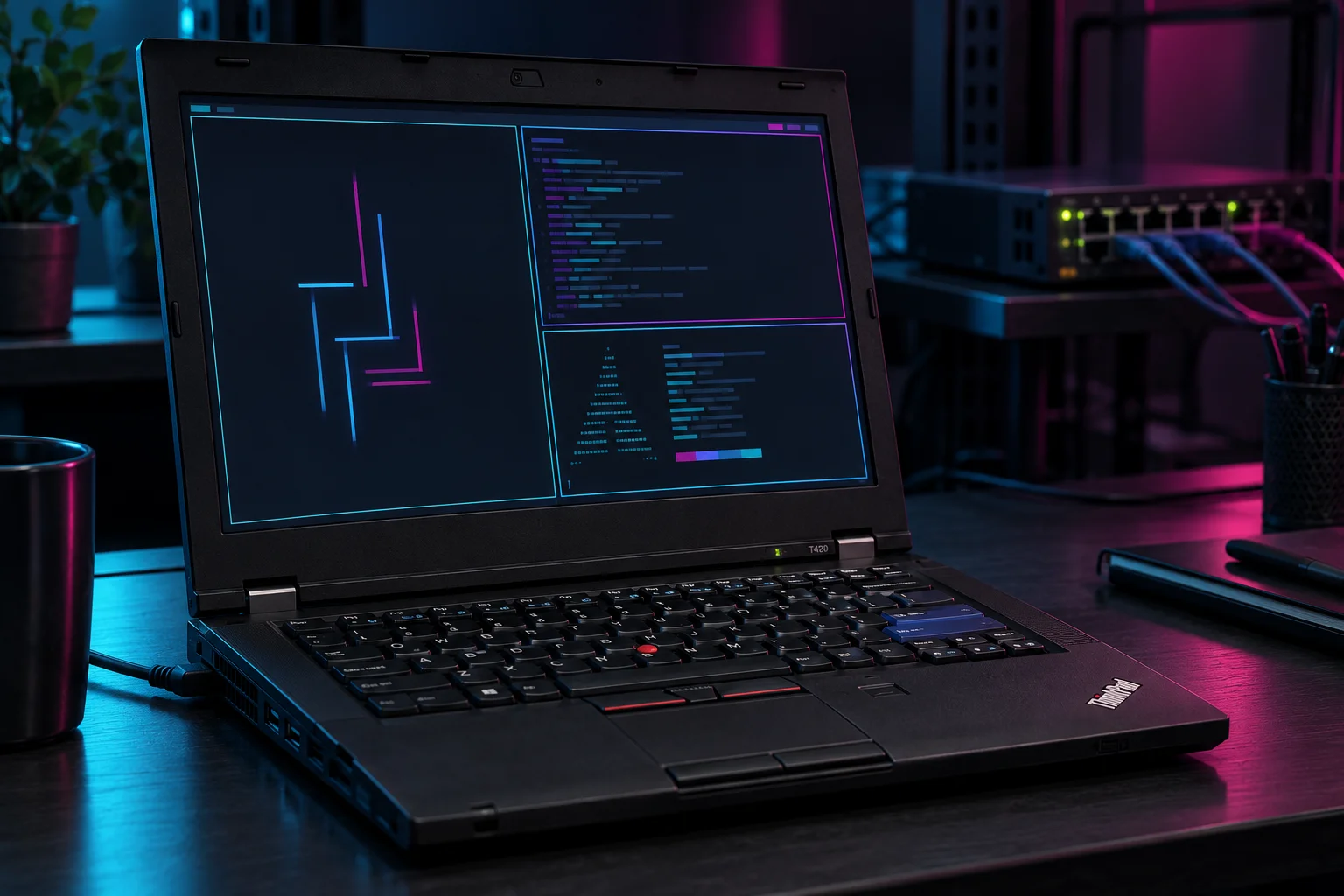
My ThinkPad T420 cost $50. After adding an SSD and bringing it to 8 GB of RAM, I wanted a comfortable machine for terminals, SSH, documentation, and homelab administration.
I chose Arch Linux with i3. The attraction was a simple desktop that I could understand and adjust: a window manager, a panel, a launcher, and a few services doing specific jobs.
This post combines the results from my machine with a clean starting configuration readers can reproduce. The commands below are a proposed setup, not an export of my exact dotfiles or a claim that every block has been tested on every T420.
Verification status
| Scope | Evidence and limits |
|---|---|
| Environment | ThinkPad T420; Core i5-2520M, SSD, 8 GB RAM; Arch Linux with Xorg/i3. |
| Previously reported lab observations | Working brightness control and an NVIDIA runtime-suspend observation; fingerprint verification and some mute behavior remained unresolved. |
| Preparation checks | 13 Bash examples passed syntax checks during preparation. The starter configuration is not an export of the installed dotfiles. |
| Still to verify | Run the i3 configuration parser and test audio, input, locking, suspend/resume and battery behavior on the target laptop. |
This table summarizes the evidence recorded for this article. It is not a new hardware test or a certification for other versions.
The hardware and the result
| Component | My machine |
|---|---|
| Processor | Intel Core i5-2520M |
| Memory | 8 GB after upgrading |
| Storage | SATA SSD after upgrading |
| Display | 1600 × 900 panel |
| Graphics | Intel integrated graphics plus an NVIDIA Optimus GPU |
| Desktop | Arch Linux, Xorg, i3, Polybar, Picom, Rofi, and Dunst |
| Audio | PipeWire with WirePlumber |
Brightness control worked in my setup. The NVIDIA device was observed in runtime suspend during a check. Audio mute behavior still needed refinement, and the fingerprint reader enrolled a finger but repeatedly failed verification, so I left fingerprint login out.
The i7 processor and IPS panel I considered are planned upgrades, not installed hardware or prerequisites for this guide. Other T420 configurations can differ, particularly graphics, wireless adapters, fingerprint readers, and display panels.
Start with an existing Arch installation
This guide begins after Arch is installed and you can log in locally. Keep a working network connection and a second console available. If you already have a desktop, keep it available until the new session works.
Collect a baseline before changing anything:
|
|
Save the output privately if it contains information you do not want to publish. It gives you a useful reference when troubleshooting a driver or comparing behavior after an update.
Arch changes continuously. Check package availability and current upstream instructions before installing. The examples below were written for this article; they have not been executed on a T420 as part of its preparation.
Install a small desktop stack
Review the full-system upgrade before accepting it:
|
|
Use a full upgrade rather than refreshing package databases and selectively updating a handful of packages. If Pacman proposes replacing an existing audio stack, review that transition before accepting it.
The starting configuration uses i3status. My actual desktop uses Polybar, but getting the session functional first makes troubleshooting easier. You can replace the panel later without changing the window manager.
If NetworkManager already manages this laptop, leave that arrangement in place. If you deliberately choose it for a new installation, enable it from the local console:
|
|
Do not start NetworkManager on an interface already managed by a different network service without planning that switch. Changing network managers over SSH can disconnect you.
Back up the configuration before replacing it
The next sections create a complete minimal i3 configuration and an X startup file. They replace those two files. Back up existing versions first:
|
|
Keep that printed location. Custom launchers, workspace bindings, and display commands will not be present in the new starter file unless you add them back.
Create the i3 configuration
The Windows key becomes the modifier. Enter opens a terminal, d opens Rofi, and Shift+q closes the focused window.
|
|
Resolve configuration errors before opening the new desktop. A successful parse checks i3 syntax; it does not prove that audio devices, brightness permissions, or keyboard events work.
The Shift+e binding exits immediately, so save your work first. The lock shortcut is Shift+x with the modifier.
Start the session from a local console
If you already use a display manager, choose its i3 session. The following .xinitrc is for starting X manually:
|
|
From the laptop’s local text console, run:
|
|
Do not launch another X server from inside an existing graphical session. Keeping the system xinit hooks helps preserve the environment expected by desktop services.
Check audio and brightness separately
Run these inside the graphical session:
|
|
Try the volume and brightness keys, then repeat the checks. If changing volume works but a physical mute button or its LED behaves differently, investigate that button’s event and the selected audio device separately. Do not assume every indicator is controlled by the same software mixer.
Use xev from the xorg-xev package to inspect key events if a binding does nothing. Avoid launching it while entering passwords. If brightness changes fail due to permissions, check the current Arch guidance for brightnessctl and session access before adding broad privileges.
Enable tap-to-click with libinput
This is optional. If Xorg uses libinput for your touchpad, a small input-class file enables tapping without changing TrackPoint settings:
|
|
Log out and back in to restart the X session. Check that the touchpad uses libinput first; a different driver will not use this rule. To roll back a newly created rule, remove only this file and restart X. If you replaced an existing rule, restore its backup instead.
Locking, blanking, and suspend are different
The starter config asks X to start its screen saver after five minutes, and xss-lock launches i3lock. DPMS requests display power-off after ten minutes. These settings do not themselves define the laptop’s lid or system suspend policy.
Before relying on the laptop for administration, verify all three cases:
- Press the manual lock shortcut and confirm that unlocking requires your password.
- Wait through the idle interval and check that the session locks.
- Suspend from the local session, resume, and verify that the desktop remains locked.
Test without unsaved work. Inspect the running processes if you get duplicate lockers or compositors:
|
|
Keep one intended startup entry per service. Using exec_always for every background application can create duplicates when you restart i3.
Check power management before tuning it
My setup uses TLP. Before installing or enabling another power manager, inspect what is already active:
|
|
An inactive result or missing unit is information, not necessarily an error. Choose one power-management approach and follow its current documentation; do not enable competing managers and hope their settings agree.
If TLP is installed, collect its view of the system:
|
|
Compare battery behavior at the same screen brightness and workload. Battery wear, radio activity, background tasks, and GPU state can change the result. I am not claiming a particular runtime or power saving from this configuration.
Treat Optimus as a separate project
Some T420 units include an NVIDIA GPU alongside Intel graphics. Identify yours before choosing a driver:
|
|
On my laptop, a check showed the NVIDIA device in runtime suspend. That is an observation at one moment, not proof that it stays suspended after every resume or application launch.
Check the current driver support for your exact GPU and kernel. Installing a modern NVIDIA package simply because the laptop has an NVIDIA sticker is not a reliable approach for hardware this old. Keep graphics changes separate from desktop configuration so you can identify which change breaks a working session.
What I left unfinished
The fingerprint reader accepted enrollment but failed verification often enough that I stopped using it. Password login remains the baseline. I would not add fingerprint authentication to PAM until repeated verification works and another login method has been tested.
The physical mute behavior and battery-related shortcuts also deserve their own checks. A button that worked under Lenovo’s Windows software may need an explicit Linux binding or may produce a different event than expected.
Polybar, custom wallpapers, a newer-looking terminal, and clipboard history are useful refinements. They come after working networking, readable fonts, dependable audio, and a lock screen that survives suspend.
A short acceptance check
| Test | What to verify |
|---|---|
| Cold boot | Reach a local login and start i3 |
| Networking | Connect, resolve DNS, and SSH to a known host |
| Audio | Playback, volume changes, and mute/unmute |
| Input | TrackPoint, touchpad, typing, and tapping if enabled |
| Display | Brightness keys and readable native resolution |
| Locking | Manual lock, idle lock, and suspend/resume lock |
| Battery | Charge reporting and a repeatable light workload |
The T420 does not need to replace a modern workstation to be useful. Mine has a focused job: connect to the machines doing the heavy work, keep a terminal open, and let me administer the lab from a keyboard I enjoy using.
Continue reading
- Intel AMT Serial over LAN — Use your administration client to reach a compatible host’s text console.
- Proxmox bridges and VLANs — Learn how the machines you administer connect to their networks.
- Prometheus and Grafana foundations — Build a dashboard for checking the lab from your client.
References and image provenance
- ArchWiki: Lenovo ThinkPad T420
- ArchWiki: i3
- i3 user guide
- ArchWiki: xinit
- ArchWiki: TLP
- WirePlumber: wpctl
These upstream documentation entry points should be checked against your installed versions. Live documentation retrieval was unavailable while preparing this draft.
The cover is an AI-generated editorial illustration made with the built-in image-generation tool. It is not evidence of the physical machine, its installed software, or its performance. The prompt is preserved alongside the asset in the repository.