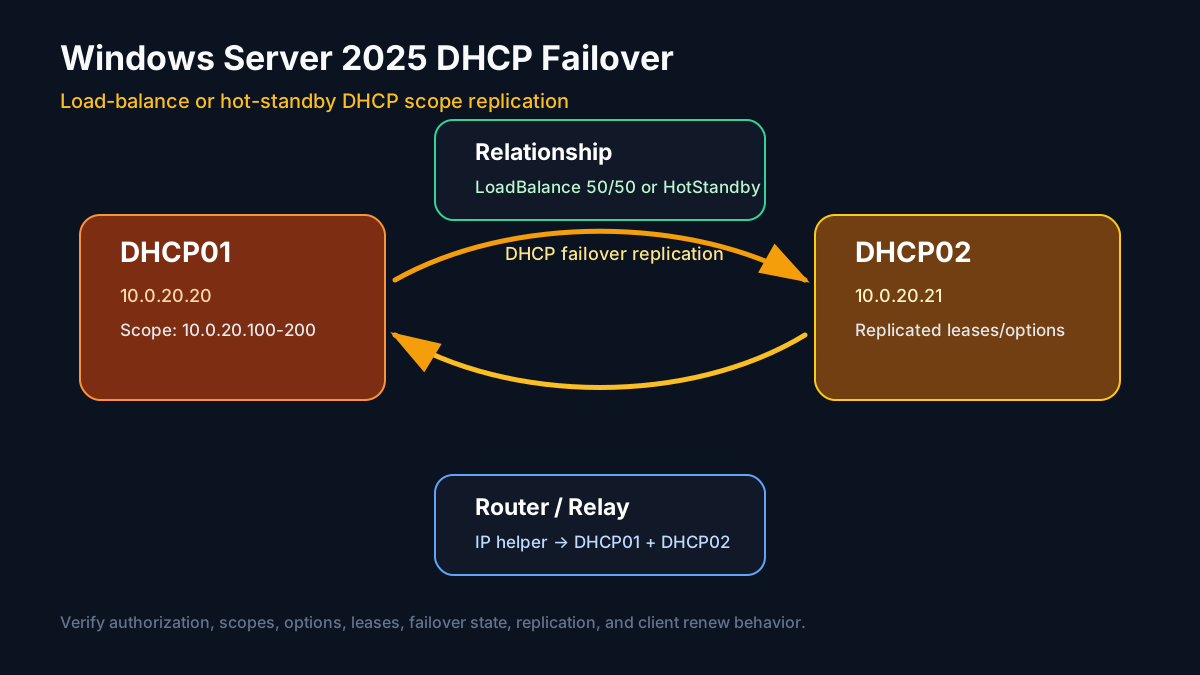
DHCP looks simple until it is down. If your only DHCP server fails, clients can keep their existing leases for a while, but new devices do not get addresses, renewals eventually fail, and the network slowly gets weird.
Windows Server DHCP failover solves that by pairing two DHCP servers. They share scope configuration and lease state, then serve clients in load-balance or hot-standby mode. This guide builds DHCP failover on Windows Server 2025 with GUI and Server Core/PowerShell paths, including replication and verification.

Image placeholders to add later:
- Screenshot: DHCP role install in Server Manager
- Screenshot: DHCP post-install authorization wizard
- Screenshot: DHCP console showing
DHCP01andDHCP02- Screenshot: new IPv4 scope wizard
- Screenshot: scope options with router, DNS servers, and DNS domain
- Screenshot: Configure Failover wizard relationship page
- Screenshot: load-balance or hot-standby mode selection
- Screenshot: failover relationship status healthy
- Screenshot: replicated scope visible on
DHCP02- Screenshot: client lease and
ipconfig /allverification
GUI vs Server Core Path
This guide covers both styles:
- Desktop Experience / GUI: Server Manager, DHCP console, new scope wizard, DHCP authorization, and failover wizard.
- Server Core / PowerShell:
Install-WindowsFeature,Add-DhcpServerInDC,Add-DhcpServerv4Scope,Set-DhcpServerv4OptionValue, andAdd-DhcpServerv4Failover.
Use GUI for screenshots and learning the flow. Use PowerShell for repeatable server builds and clean documentation.
Target Design
| Item | Value |
|---|---|
| DHCP server 1 | DHCP01.gntech.me / 10.0.20.20 |
| DHCP server 2 | DHCP02.gntech.me / 10.0.20.21 |
| Domain | gntech.me |
| Scope | 10.0.20.0/24 |
| Lease range | 10.0.20.100 - 10.0.20.200 |
| Exclusions | 10.0.20.1 - 10.0.20.99, 10.0.20.201 - 10.0.20.254 |
| Gateway option | 10.0.20.1 |
| DNS option | 10.0.20.10, 10.0.20.11 |
| DNS suffix | gntech.me |
| Failover mode | Load balance 50/50 for LAN, hot standby for remote site |
For a homelab LAN, load-balance mode is usually fine. For a branch or remote site, hot-standby mode can be cleaner.
DHCP Failover Modes
Windows DHCP failover supports two common designs.
Load Balance
Both DHCP servers answer clients and split the scope workload.
|
|
Hot Standby
One server actively handles the scope; the partner waits and takes over if the active server is unavailable.
|
|
For this guide, the PowerShell example uses load-balance mode.
Pre-Checks
On both DHCP servers:
|
|
Both servers should be domain joined, statically addressed, patched, and able to resolve the domain.
Check domain DNS:
|
|
Install the DHCP Server Role
GUI: Server Manager
On each DHCP server:
- Open Server Manager.
- Go to Manage → Add Roles and Features.
- Select DHCP Server.
- Accept management tools.
- Install the role.
- Click the post-install notification to complete DHCP configuration.
Image placeholder: Add screenshot of the DHCP Server role selected in Server Manager.
Server Core / PowerShell
Run on both DHCP01 and DHCP02:
|
|
Verify:
|
|
Expected service:
|
|
Authorize DHCP in Active Directory
Domain-joined Windows DHCP servers must be authorized in AD before they serve leases.
GUI: DHCP Console
- Open Server Manager → Tools → DHCP.
- Right-click the server.
- Select Authorize.
- Refresh until the server icon shows authorized.
Image placeholder: Add screenshot of both DHCP servers authorized in the DHCP console.
Server Core / PowerShell
Run from a domain admin session:
|
|
Verify:
|
|
Create the Scope on DHCP01
Create the scope on one server first. The failover relationship will replicate it to the partner.
GUI: DHCP Console
- Expand
DHCP01. - Right-click IPv4 → New Scope.
- Name it
LAB-10.0.20.0. - Set range
10.0.20.100to10.0.20.200. - Set subnet mask
255.255.255.0. - Add exclusions if needed.
- Set router
10.0.20.1. - Set DNS servers
10.0.20.10and10.0.20.11. - Set DNS domain
gntech.me. - Activate the scope.
Image placeholder: Add screenshot of the New Scope Wizard with the address range configured.
Image placeholder: Add screenshot of DHCP scope options showing router, DNS servers, and DNS suffix.
Server Core / PowerShell
Run on DHCP01:
|
|
Set options:
|
|
Verify:
|
|
Configure DHCP Failover
GUI: DHCP Failover Wizard
- In DHCP console, expand
DHCP01 → IPv4. - Right-click the scope → Configure Failover.
- Select the scope.
- Add partner server
DHCP02.gntech.me. - Name the relationship
DHCP01-DHCP02-LAB. - Choose Load balance.
- Set load balance percentage to
50%. - Set shared secret.
- Finish the wizard.
Image placeholder: Add screenshot of the Configure Failover wizard with
DHCP02selected as the partner.Image placeholder: Add screenshot of load-balance mode and shared secret configuration.
Server Core / PowerShell
Use a strong shared secret. Store it securely.
|
|
Clear the plaintext variable when done:
|
|
Verify the relationship:
|
|
Replicate Scope Configuration
Failover replicates leases automatically, but when you change scope options, reservations, policies, or exclusions, force replication.
GUI: Replicate Scope
- Open DHCP console.
- Right-click the scope or IPv4 node.
- Select Replicate Scope or Replicate Failover Scopes.
- Confirm replication to the partner.
Image placeholder: Add screenshot of the DHCP replicate scope action.
Server Core / PowerShell
Replicate a specific scope:
|
|
Or replicate by relationship name:
|
|
Verify the scope exists on both servers:
|
|
Router / VLAN DHCP Relay
If clients are not on the same L2 segment as the DHCP servers, configure DHCP relay/IP helper on the router or L3 switch.
For a VLAN 20 client network, relay to both DHCP servers:
|
|
On MikroTik, this is usually DHCP Relay on the VLAN interface. On Cisco,
it is usually ip helper-address under the SVI. The important part is
that both DHCP servers receive requests.
Verification Checklist
1. DHCP Server Authorization
|
|
Expected: both DHCP01 and DHCP02 listed with correct IPs.
2. Scope Exists on Both Servers
|
|
3. Options Are Correct
|
|
Expected:
|
|
4. Failover Relationship Is Healthy
|
|
Look for normal state on both partners.
5. Client Lease Test
On a Windows client:
|
|
Verify:
- IPv4 address is inside
10.0.20.100-200 - gateway is
10.0.20.1 - DNS servers are
10.0.20.10and10.0.20.11 - DNS suffix is
gntech.me
6. Lease Visibility
|
|
Leases should replicate between partners.
Failover Test
Do not hard power off servers during early testing. First do a controlled service test.
On DHCP01:
|
|
On a client:
|
|
Expected: the client still receives a valid lease from DHCP02.
Restart DHCP01:
|
|
Check failover state:
|
|
Common Problems
DHCP Server Not Leasing Addresses
Check authorization:
|
|
If unauthorized, authorize it in AD.
Client Gets APIPA Address
APIPA means the client did not receive DHCP.
Check the client and the DHCP server-side counters:
|
|
Do not use Test-NetConnection -Port 67 as a DHCP test. DHCP uses UDP
broadcast/relay behavior, so a TCP port probe does not prove DHCP works.
Also verify DHCP relay/IP helper on routed VLANs.
Scope Changes Did Not Appear on Partner
Force replication:
|
|
DNS Updates Not Working
If DHCP is registering DNS records for clients, configure DHCP credentials and check DNS dynamic update settings.
|
|
For AD environments, DNS zones should allow secure dynamic updates.
Final Verification Script
|
|
Summary
The reliable DHCP failover path is:
- Build two domain-joined Windows Server 2025 DHCP servers
- Install DHCP role and management tools
- Authorize both servers in Active Directory
- Create the scope on the first server
- Set router, DNS server, and DNS suffix options
- Create a DHCP failover relationship
- Replicate scope configuration after changes
- Configure router/VLAN DHCP relay to both servers
- Verify leases, options, failover state, and client renewal
DHCP failover is not just a checkbox. Treat it like a replicated service: verify both partners, force replication after changes, and test client renewal before you trust it.