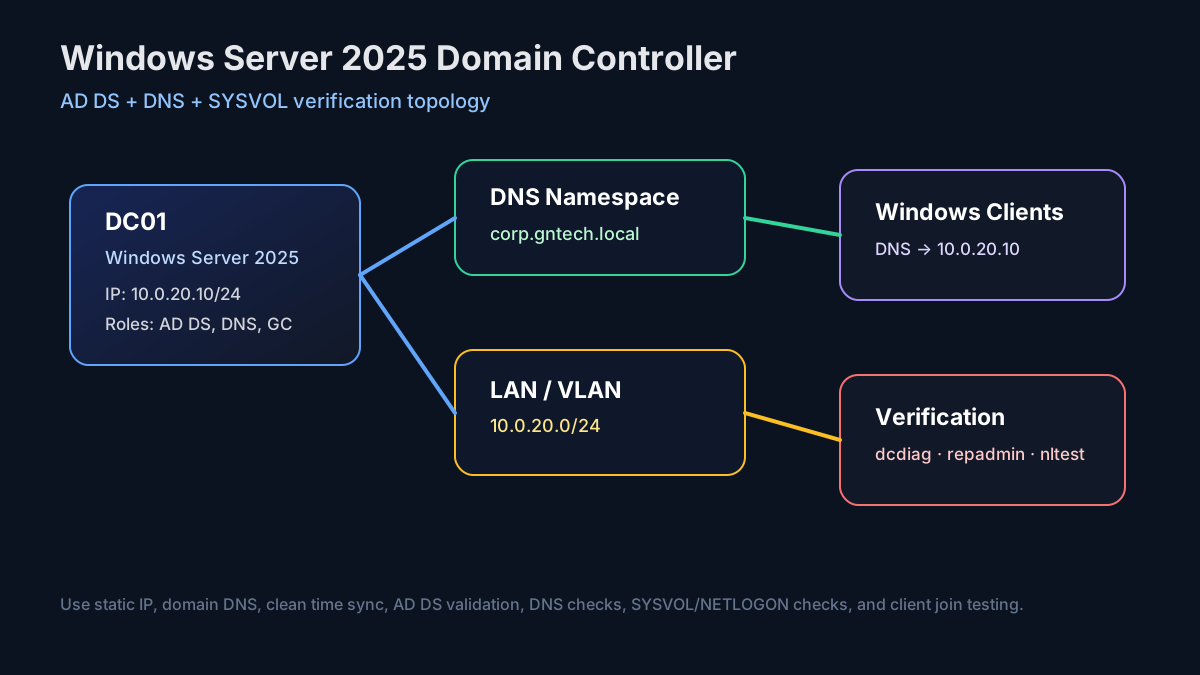
A domain controller is still the center of a Windows network. Even in a small homelab, Active Directory gives you centralized identity, DNS, Group Policy, Kerberos authentication, device management, and a clean place to test enterprise workflows without touching production.
This guide builds a fresh Windows Server 2025 domain controller from zero: static IP, hostname, AD DS installation, DNS, forest creation, first OU/user structure, client join, and verification. The focus is not “click Next until it works”. The focus is building it in a way you can troubleshoot later.

Image placeholders to add later:
- Screenshot: Server Manager dashboard before AD DS installation
- Screenshot: static IP and DNS settings on
DC01- Screenshot: Add Roles and Features wizard with Active Directory Domain Services selected
- Screenshot: AD DS post-deployment warning / Promote this server to a domain controller
- Screenshot: Deployment Configuration page for new forest
gntech.me- Screenshot: DNS Options / Additional Options pages during promotion
- Screenshot: final prerequisites check before install
- Screenshot: Active Directory Users and Computers showing created OUs
- Screenshot: DNS Manager showing
_msdcsand SRV records- Screenshot: successful
dcdiag,repadmin, and client domain join verification
GUI vs Server Core Path
This guide covers both install styles:
- Desktop Experience / GUI: use Server Manager, Settings, DNS Manager, Active Directory Users and Computers, and the AD DS configuration wizard.
- Server Core / automation: use PowerShell only. This is the cleaner path for repeatable homelab builds, unattended deployment, and documentation.
Use the GUI path when you want screenshots or you are learning the flow. Use the PowerShell path when you want a build you can reproduce exactly.
Target Lab Design
Example values used in this guide:
| Item | Value |
|---|---|
| Server name | DC01 |
| Server OS | Windows Server 2025 |
| Domain/FQDN | gntech.me |
| NetBIOS name | GNTECH |
| DC IP | 10.0.20.10/24 |
| Gateway | 10.0.20.1 |
| DNS on DC | 127.0.0.1, then 10.0.20.10 |
| DNS on clients | 10.0.20.10 |
| Site | Default-First-Site-Name initially |
Use a real internal domain that you own if this will become production.
For a lab, .local is common, but it can conflict with mDNS in mixed
Linux/macOS networks. A safer production-style pattern is a delegated
subdomain like ad.example.com or corp.example.com.
Before You Install AD DS
Do these first. Most broken domain controllers come from skipping one of these basics.
1. Patch the Server
Install Windows updates before promotion:
|
|
If you do not use PSWindowsUpdate, run updates from Settings or Windows
Admin Center. Reboot until there are no pending updates.
2. Rename the Server
Do not promote a server named WIN-ABC123XYZ.
|
|
After reboot:
|
|
Expected:
|
|
3. Configure a Static IP
Find the interface name:
|
|
Set the address:
|
|
Set temporary DNS to itself. Before AD DS is installed this looks odd, but the DNS role will be installed during domain controller promotion.
|
|
Verify:
|
|
4. Check Time Sync
Kerberos is time-sensitive. A five-minute clock skew can break logons.
|
|
For a single lab DC, sync the host/VM from a reliable source. For a production domain, configure the PDC Emulator to use external NTP and let domain members sync from the domain hierarchy.
Install AD DS and DNS
GUI: Install the Role with Server Manager
On Windows Server 2025 Desktop Experience:
- Open Server Manager.
- Go to Manage → Add Roles and Features.
- Choose Role-based or feature-based installation.
- Select the local server
DC01. - Select Active Directory Domain Services.
- Accept the required management tools.
- Continue through the wizard and click Install.
Image placeholder: Add screenshot of Server Manager role selection with Active Directory Domain Services checked.
The role install does not make the server a domain controller yet. It only installs the AD DS binaries and management tools.
Server Core / PowerShell: Install the Role
Install the AD DS role with management tools:
|
|
Verify the role is present:
|
|
Expected result:
|
|
The server is not a domain controller yet. The role only installs the binaries. Promotion creates the forest/domain and configures DNS, SYSVOL, NTDS, Kerberos, and the first domain controller objects.
Promote the Server to a New Forest
GUI: Promote with the AD DS Wizard
After role installation, Server Manager shows a notification flag.
- Click the notification flag.
- Select Promote this server to a domain controller.
- Choose Add a new forest.
- Enter the root domain name:
gntech.me. - Keep Domain Name System (DNS) server checked.
- Set the Directory Services Restore Mode password.
- Confirm the NetBIOS name:
GNTECH. - Review paths for database, logs, and SYSVOL.
- Run the prerequisites check.
- Click Install and let the server reboot.
Image placeholder: Add screenshot of the Deployment Configuration page showing Add a new forest and
gntech.me.Image placeholder: Add screenshot of the prerequisites check passing before clicking Install.
Server Core / PowerShell: Promote with Install-ADDSForest
For a new lab forest:
|
|
The server reboots automatically.
Do not force a functional level unless you know exactly why. For a clean Windows Server 2025-only lab, the default selected by Server Manager or PowerShell is fine. In a real environment, check compatibility before raising forest or domain functional levels.
After reboot, log in as:
|
|
or:
|
|
Post-Promotion DNS Cleanup
After promotion, set the server NIC DNS to the DC IP. Avoid leaving only
127.0.0.1 on the NIC because it makes later troubleshooting less clear.
|
|
Verify:
|
|
Expected: both names resolve to the domain/DC records, with DC01
resolving to 10.0.20.10.
Configure DNS Forwarders
Clients should use the DC for DNS. The DC can forward unknown internet queries to upstream resolvers.
GUI: DNS Manager
- Open Server Manager → Tools → DNS.
- Right-click
DC01→ Properties. - Open the Forwarders tab.
- Add
1.1.1.1and9.9.9.9, or your internal resolver.
Image placeholder: Add screenshot of DNS Manager forwarders configured on
DC01.
Server Core / PowerShell
|
|
If your firewall/router provides internal DNS for other VLANs, you can forward to that instead. The rule is simple: clients ask AD DNS first; AD DNS either answers internal records or forwards external queries.
Create a Basic OU Structure
GUI: Create OUs in Active Directory Users and Computers
On Desktop Experience:
- Open Server Manager → Tools → Active Directory Users and Computers.
- Expand
gntech.me. - Right-click the domain → New → Organizational Unit.
- Create
Servers,Workstations,Users,Groups, andService Accounts. - Right-click
Users→ New → User to createtest.user.
Image placeholder: Add screenshot of Active Directory Users and Computers showing the OU layout after creation.
Server Core / PowerShell: Create OUs and Users
Install the AD PowerShell module if it is not loaded automatically:
|
|
Create a clean structure:
|
|
Create a test user:
|
|
Verify:
|
|
Configure the Reverse Lookup Zone
Reverse DNS is not mandatory for every lab, but it helps with clean logging and diagnostics.
|
|
Create or verify the PTR record for the DC:
|
|
Check it:
|
|
If the PTR already exists, the add command will fail. That is fine — verify the existing record instead of duplicating it.
Join a Windows Client to the Domain
On a Windows 11/Windows Server client, set DNS to the DC:
|
|
Verify DNS before joining:
|
|
Join the domain:
|
|
After reboot, log in as:
|
|
Move the computer object into the correct OU:
|
|
Verification Checklist
This is the important part. A DC that installs without errors can still have DNS, SYSVOL, replication, or secure channel problems.
1. Confirm Domain Controller Discovery
Run from the DC:
|
|
Expected indicators:
|
|
2. Run DCDIAG
|
|
For a single-DC lab, focus on:
|
|
A clean result should show tests passed. DNS warnings are common if forwarders or internet access are not configured yet, but internal SRV records must work.
Quick DNS-only test:
|
|
3. Verify SYSVOL and NETLOGON Shares
|
|
Expected shares:
|
|
Check paths:
|
|
Both should return:
|
|
4. Verify Replication Health
Even with one DC, use the replication tools now so the commands are normal before you add a second DC.
|
|
For a single DC, there may be little to replicate, but there should be no replication failures.
5. Verify FSMO Roles
|
|
Expected: all five FSMO roles are held by DC01 in a single-DC forest.
|
|
6. Verify DNS SRV Records
|
|
If these fail, clients will not reliably find domain controllers.
7. Verify AD Web Services
PowerShell AD cmdlets depend on AD Web Services.
|
|
Expected service status:
|
|
8. Verify Client Secure Channel
On a domain-joined client:
|
|
Expected:
Test-ComputerSecureChannelreturnsTruewhoami /fqdnreturns the user’s AD distinguished namegpupdatecompletes without DC discovery errorsgpresult /rshows domain policy information
Basic Hardening After Install
Do these before building more services around the domain.
Disable Unneeded Local Administrator Use
Create named admin accounts and keep the built-in Administrator for break-glass use.
|
|
Enable the Recycle Bin
|
|
Verify:
|
|
Configure Backups
At minimum, back up System State:
|
|
For a VM, also keep hypervisor-level backups, but do not treat VM snapshots as your only AD backup strategy. AD has replication and USN rollback considerations once you have more than one DC.
Keep DNS Simple
Recommended client DNS:
|
|
Not recommended:
|
|
Clients must ask AD DNS first. If they ask public DNS first, domain join, Group Policy, Kerberos, and SRV record discovery will randomly fail.
Common Problems and Fixes
Domain Join Fails: Domain Not Found
Check DNS on the client:
|
|
Fix: point client DNS to the DC, not the router or public resolvers.
DCDIAG DNS Test Fails
Check the DNS service:
|
|
Then restart Netlogon to re-register SRV records:
|
|
SYSVOL or NETLOGON Missing
Check DFSR:
|
|
Do not ignore missing SYSVOL/NETLOGON. Group Policy and logon scripts will not work correctly until SYSVOL is healthy.
Time/Kerberos Errors
|
|
On clients:
|
|
If time is wrong, Kerberos tickets fail and logons get weird fast.
Final Verification Script
Run this after the DC is built:
|
|
If DNS, SYSVOL, FSMO, AD cmdlets, and client join all pass, you have a working Windows Server 2025 domain controller.
Summary
The reliable path is straightforward:
- Patch Windows Server 2025
- Rename the server
- Assign a static IP
- Install AD DS with management tools
- Promote to a new forest with DNS
- Point clients to AD DNS
- Create OUs/users/groups
- Join a test client
- Verify with
dcdiag,repadmin,nltest, DNS SRV lookups, SYSVOL, and client secure channel tests
The install wizard is the easy part. Verification is what tells you the domain is actually usable.