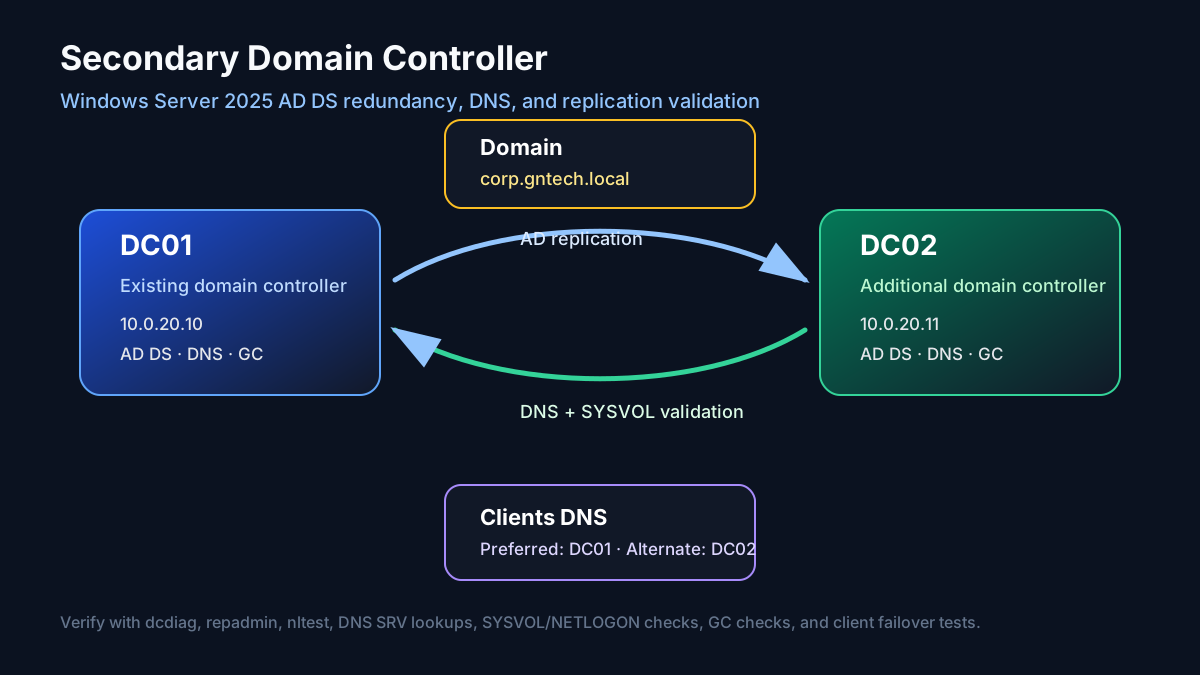
A single domain controller is fine for a lab, but it is still a single
point of failure. If DC01 is down, clients lose AD DNS, Kerberos,
Group Policy, LDAP, and domain controller discovery. Adding a secondary
domain controller gives the domain redundancy and gives you a safer way
to patch, reboot, or recover the first DC.
This guide adds DC02 as a Windows Server 2025 domain controller to an
existing domain. It assumes the first DC already exists and is healthy.
If you have not built the first DC yet, start with the primary domain
controller guide first.

Image placeholders to add later:
- Screenshot:
DC01health checks before addingDC02- Screenshot:
DC02static IP and DNS pointing toDC01- Screenshot: Server Manager role selection for AD DS on
DC02- Screenshot: AD DS wizard Add a domain controller to an existing domain
- Screenshot: Domain Controller Options with DNS and Global Catalog enabled
- Screenshot: Replication source / Additional Options page
- Screenshot: prerequisites check before promoting
DC02- Screenshot: Active Directory Users and Computers showing both DCs
- Screenshot: DNS Manager showing replicated zones on
DC02- Screenshot:
repadmin,dcdiag, SYSVOL/NETLOGON, and client failover validation
GUI vs Server Core Path
This guide covers both install styles:
- Desktop Experience / GUI: use Server Manager, AD DS Configuration Wizard, DNS Manager, Active Directory Users and Computers, and Active Directory Sites and Services.
- Server Core / automation: use PowerShell commands for repeatable builds, remote administration, and clean documentation.
The GUI path is useful for screenshots and learning the workflow. The Server Core path is better for real repeatable infrastructure.
Target Design
Example values used here:
| Item | Value |
|---|---|
| Existing DC | DC01.gntech.me |
| Existing DC IP | 10.0.20.10 |
| New DC | DC02.gntech.me |
| New DC IP | 10.0.20.11 |
| Domain | gntech.me |
| NetBIOS | GNTECH |
| Site | Default-First-Site-Name initially |
| Roles on DC02 | AD DS, DNS, Global Catalog |
| Client DNS | Preferred 10.0.20.10, alternate 10.0.20.11 |
The secondary DC should be on the same reliable server VLAN as the first DC, or in a separate site if you are testing AD Sites and Services. Do not put a DC on unstable Wi-Fi, DHCP-only addressing, or storage you do not trust.
Pre-Checks on DC01
Do not add another domain controller to a broken domain. First, verify
DC01 is healthy.
Run on DC01:
|
|
Expected:
- DNS test passes or only shows non-critical forwarder warnings
- No replication failures
SYSVOLandNETLOGONshares exist- FSMO roles are known and reachable
Check AD and DNS service status:
|
|
If any core service is stopped, fix that before promoting DC02.
Prepare DC02
Start with a clean Windows Server 2025 install.
1. Patch Windows
|
|
Reboot until updates are complete.
2. Rename the Server
|
|
After reboot:
|
|
Expected:
|
|
3. Configure Static IP
|
|
For DNS, point DC02 to the existing domain controller first. This is
important because DC02 must find the existing AD domain before it can
join or promote.
|
|
Verify network and DNS:
|
|
If SRV lookup fails, stop. Domain promotion depends on AD DNS.
4. Check Time Sync
|
|
Kerberos requires time to be close. Fix time skew before joining the domain.
Join DC02 to the Existing Domain
You can promote a workgroup server directly, but joining first makes basic DNS, credential, and secure channel problems obvious before AD DS promotion.
|
|
After reboot, log in as a domain admin:
|
|
Verify the secure channel:
|
|
Expected:
|
|
Install AD DS on DC02
GUI: Install the Role with Server Manager
On Windows Server 2025 Desktop Experience:
- Open Server Manager.
- Go to Manage → Add Roles and Features.
- Choose Role-based or feature-based installation.
- Select
DC02. - Select Active Directory Domain Services.
- Accept the required management tools.
- Click Install.
Image placeholder: Add screenshot of AD DS role selection on
DC02.
Server Core / PowerShell: Install the Role
Install the AD DS role and tools:
|
|
Verify:
|
|
Expected:
|
|
Promote DC02 as an Additional Domain Controller
GUI: Promote with the AD DS Wizard
After the AD DS role installs, Server Manager shows a notification flag.
- Click the notification flag.
- Select Promote this server to a domain controller.
- Choose Add a domain controller to an existing domain.
- Enter
gntech.meand provide domain admin credentials. - Keep Domain Name System (DNS) server checked.
- Keep Global Catalog (GC) checked.
- Set the Directory Services Restore Mode password for
DC02. - Pick a replication source or leave it automatic.
- Review paths and run the prerequisites check.
- Click Install and let
DC02reboot.
Image placeholder: Add screenshot of the Deployment Configuration page showing Add a domain controller to an existing domain.
Image placeholder: Add screenshot of Domain Controller Options with DNS and Global Catalog checked.
Image placeholder: Add screenshot of the prerequisites check before installation.
Server Core / PowerShell: Promote with Install-ADDSDomainController
Use Install-ADDSDomainController. This adds a domain controller to an
existing domain, instead of creating a new forest.
|
|
The server reboots after promotion.
Notes:
-InstallDnsinstalls DNS onDC02.-NoGlobalCatalog:$falsemakesDC02a Global Catalog server.- The DSRM password is local to this domain controller.
- Do not use
Install-ADDSForest; that creates a new forest and is the wrong command for a secondary DC.
Set DNS Client Order After Promotion
After DC02 is promoted and DNS is installed, update DNS client settings
on both DCs.
On DC01:
|
|
On DC02:
|
|
This keeps each DC using itself first, with the other DC as backup. Some admins prefer the partner DC first to avoid DNS island scenarios during boot. In small homelabs, either pattern can work if both DCs are healthy; be consistent and test failover.
For clients, set DHCP DNS options to both DCs:
|
|
Do not hand out public DNS servers to domain-joined clients. Public DNS cannot answer AD SRV records.
Verify DC02 Promotion
Run these checks after the reboot.
1. Confirm DC Discovery
From DC02:
|
|
Expected: both DC01 and DC02 appear in the domain controller list.
2. Verify Domain Controller Object
|
|
Expected:
DC01appearsDC02appearsDC02hasIsGlobalCatalogset toTrue
3. Run DCDIAG on Both DCs
|
|
Then run targeted DNS tests:
|
|
Focus on:
|
|
Short-lived replication warnings immediately after promotion can happen. Wait a few minutes, force replication, and retest before treating them as real failures.
4. Verify Replication
|
|
A healthy result has no failed replication attempts.
Force synchronization:
|
|
Then check again:
|
|
5. Verify SYSVOL and NETLOGON on DC02
|
|
Expected shares on DC02:
|
|
Check paths:
|
|
Both should return True.
If SYSVOL or NETLOGON is missing, check DFS Replication:
|
|
Do not continue until SYSVOL is healthy.
6. Verify DNS Zones Replicated
|
|
Expected: both DCs answer the zone and SRV records.
Check host records:
|
|
7. Verify Global Catalog
|
|
Expected:
|
|
You can also verify the GC port:
|
|
8. Verify FSMO Roles Stayed Put
Adding a secondary DC should not move FSMO roles automatically.
|
|
Expected: roles are still on DC01 unless you intentionally moved them.
For a two-DC homelab, leaving FSMO roles on DC01 is fine. If you want
DC02 to become the maintenance target later, move roles intentionally
and document it.
Client Failover Test
Pick a domain-joined Windows client.
Set DNS to both DCs:
|
|
Verify domain discovery:
|
|
Now simulate DC01 being unavailable. For a lab, the cleanest test is to
stop DNS registration use by pointing the client only to DC02, not by
hard powering off a DC during replication.
|
|
Expected: the client discovers DC02, resolves AD SRV records, and
applies Group Policy.
Restore normal DNS order afterward:
|
|
AD Sites and Services Cleanup
GUI: Active Directory Sites and Services
Open Active Directory Sites and Services:
|
|
Image placeholder: Add screenshot of Active Directory Sites and Services showing
DC01andDC02under the correct site.
Check:
DC01andDC02are under the correct site- Subnets are defined if you have multiple VLANs/sites
- NTDS Settings exists under each DC
- Replication connections were generated by KCC
For a single site, the default is usually fine. For routed homelabs with multiple VLANs or remote sites, define subnets so clients prefer the nearest DC.
PowerShell example:
|
|
Monitoring Checks to Keep
Add these to your maintenance routine:
|
|
Event logs worth watching:
|
|
Common Problems
Promotion Fails: Cannot Contact Domain
Check DNS on DC02 before promotion:
|
|
Fix: point DC02 DNS to DC01 before promotion.
Replication Shows 1908 or 1726 Right After Promotion
Immediately after promotion, transient replication errors can appear while services finish registering. Wait a few minutes, then run:
|
|
If errors persist, check firewall, DNS, time sync, and Directory Service events.
DC02 Missing SYSVOL or NETLOGON
Check DFSR logs:
|
|
Also verify the DFSR service:
|
|
Do not point clients to DC02 until SYSVOL and NETLOGON are present.
Clients Still Only Use DC01
Check Sites and Services and DNS SRV records:
|
|
If clients have static DNS pointing only to DC01, update DHCP option 6
or the client NIC configuration.
Final Verification Script
Run from an elevated PowerShell session on either DC:
|
|
Summary
The safe path to a secondary domain controller is:
- Verify
DC01is healthy first - Patch and rename
DC02 - Set static IP and point DNS to
DC01 - Join
DC02to the domain - Install AD DS
- Promote with
Install-ADDSDomainController - Install DNS and enable Global Catalog
- Verify replication, DNS, SYSVOL, NETLOGON, GC, and FSMO roles
- Update client/DHCP DNS to include both DCs
- Test client failover to
DC02
Do not treat promotion as the finish line. The finish line is a clean
dcdiag, healthy repadmin, valid DNS SRV records, present
SYSVOL/NETLOGON, and a client that can still log in and apply Group
Policy when using the secondary DC.