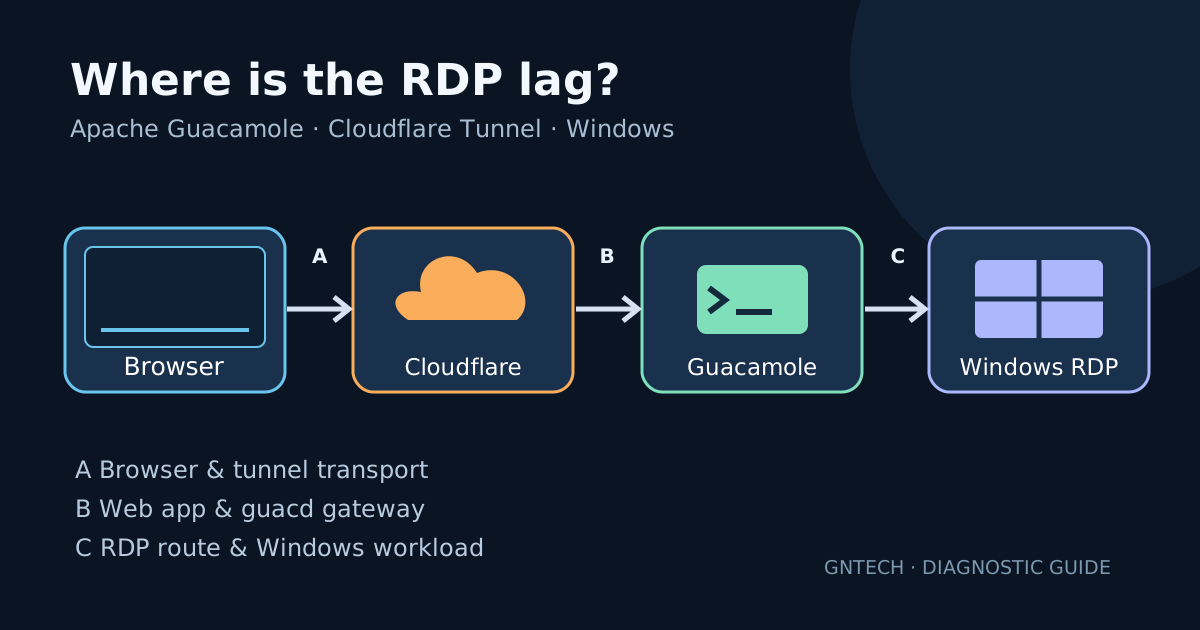
You click in a remote Windows desktop. The cursor moves a moment later. The login page is quick, but the actual desktop feels slow. Where is the delay?
Apache Guacamole is a gateway, not just an RDP client. A browser session passes through several separate connections. Optimizing Windows or changing a Cloudflare setting before locating the slow segment can make the problem harder to explain.
This guide uses Docker Compose on Linux, Apache Guacamole with guacd, a Windows RDP target, and an optional Cloudflare Tunnel in front of the web application. Replace the example names and IPs with your own. No command here changes your firewall or production connection configuration.
Verification and scope
| Item | What this guide establishes |
|---|---|
| Research | Official Apache Guacamole 1.6.0 configuration and Cloudflare Tunnel troubleshooting documentation reviewed November 1, 2026. |
| Examples | Diagnostic commands and a reproducible comparison plan; not measured performance results. |
| Not tested | No live Guacamole session, Cloudflare route, RDP server, or production network was accessed for this article. |
| Success | Similar user actions and settings compared with timestamps, and an identified slow segment supported by measurements. |

1. Map the path before troubleshooting
| Segment | Connection | What failure looks like |
|---|---|---|
| A | Browser → Cloudflare edge → cloudflared → Guacamole web app |
Slow page loads, delayed keystrokes, freezes, or transport reconnections |
| B | Guacamole web app → guacd |
Errors opening connections, gateway logs, internal network delay |
| C | guacd → Windows RDP server (TCP 3389 in this example) |
Slow screen painting, RDP reconnects, high RTT or loss on the target path |
An apparently healthy Tunnel only confirms its connector is serving traffic. It does not prove that Windows RDP or Guacamole rendering is fast. Likewise, an open TCP 3389 port confirms a listener accepted a connection, not that interactive sessions are responsive.
Collect a baseline first: time of test, approximate location of the browser, full vs. small browser window, RDP resolution, subjective input delay, and whether the issue occurs while the screen is static or during scrolling/video.
2. Check container health without restarting anything
Run these on the Linux Docker host from your Compose project directory:
|
|
If the service names differ, inspect docker compose config --services and substitute the correct names. Look for reconnects, authentication problems, resource saturation, and errors associated with the same timestamp as a slow session. Avoid posting logs publicly: they can contain hostnames, usernames, and session details.
Inspect the guacd connection to the Windows host using the network namespace of the container only if the diagnostic tool is installed there:
|
|
No output from ss is not evidence of no connection; container images vary. On a Linux host with ss, you can instead use ss -tn and look for mapped connections, while remembering Docker bridge networking may hide the container’s socket from the host’s default network namespace.
3. Test the Windows path from the right place
Run this from the guacd container’s network if the utilities are already installed; do not install packages into a running production container just for a test. For many installations, an ephemeral diagnostic container attached to the same Docker network is safer.
Identify the network first:
|
|
Choose the intended network name from the output, then perform a bounded TCP reachability test in a disposable diagnostics image you trust. This example uses a POSIX shell with nc already present:
|
|
Run this from that selected diagnostic network, not automatically from the host. A successful TCP connection proves reachability, not good RDP performance. A failed ICMP ping by itself is inconclusive because Windows firewalls often block echo requests.
If the RDP host is across a site-to-site VPN, ask: is guacd reaching the correct route and source address? Compare route and round-trip measurements from an authorized machine on the same routed path, and inspect packet loss with your network team’s approved tools. Avoid attributing a 150 ms RTT to Guacamole or Tunnel without checking where that RTT actually occurs.
4. Separate the Tunnel from the gateway
Conduct a controlled A/B comparison:
- A — Existing public path: Browser → Cloudflare Tunnel → Guacamole →
guacd→ Windows. - B — Private path: From an approved management network or a short-lived SSH local-forward to the same Guacamole origin, open the same application without the public Tunnel. Keep Guacamole,
guacd, and Windows target unchanged. - Repeat exactly the same interactions (login, type a sentence, open Start, scroll a long page) with the same browser window size and network where possible.
For B, use an already-authorized SSH bastion/host that can reach the Guacamole origin, and keep the forwarded listener on your own loopback:
|
|
The command is a pattern, not a universal recipe: the bastion must reach the application at the indicated address, and some Guacamole deployments need the /guacamole/ context path or correct forwarded-host configuration. Open http://127.0.0.1:18080/guacamole/ only when your actual origin is HTTP on that port. Do not expose or publicly publish the SSH-forwarded listener. If your existing setup uses HTTPS end-to-end or virtual-host routing, preserve those requirements in the comparison; an HTTP-only shortcut is not an acceptable production replacement.
If B is noticeably faster, inspect browser-to-Tunnel-to-origin behavior. If both A and B are equally slow, focus on Guacamole, guacd, Windows, or their network. This isolates a candidate bottleneck, not a final diagnosis: the alternate client route can still differ in important ways.
5. Inspect Tunnel transport and health
Cloudflare documents connection errors and connector health in Tunnel troubleshooting. On a host running a system service:
|
|
For Docker-managed cloudflared, use docker compose logs --since 15m cloudflared instead. Look for QUIC handshake failures, reconnections, and fallback to HTTP/2. An outbound UDP 7844 block can make cloudflared fall back; do not assume QUIC is the cause without correlating timestamps and confirming your deployed connector protocol. Avoid forcing protocols or changing firewall rules as the first test.
Also check whether your external app path preserves WebSocket connections through any reverse proxy in front of Guacamole. A working login page alone is not an interactive-session test.
6. Review RDP display and performance options
In the Guacamole connection’s RDP settings, record the current values first. Apache’s configuration manual explains that:
- Display size defaults to the browser’s usable size. A very large display demands more updates; compare at a smaller controlled resolution.
- RDP color depth can be requested as 8, 16, or 24 bits, but the target can decide how that request is handled.
- Wallpaper, window theming, and font smoothing may add visual data. Guacamole defaults many of these effects to disabled for performance.
- Clipboard, drive redirection, audio, and recording are separate features to review for actual workload overhead rather than disabling blindly.
If guacd logs warn that a requested color depth is ignored, record the warning and actual negotiated behavior. Do not claim that changing the field necessarily forces the Windows server to honor it. Make one change at a time and rerun the same test. Restore the original value if the comparison does not improve the session.
For a useful baseline, try a moderately sized window with decorative effects disabled, then compare to the original window. Do not compromise RDP certificate validation, MFA, access controls, or logging to chase an uncertain performance gain.
7. Measure the Windows host rather than guessing
From an authorized PowerShell session on the Windows RDP target:
|
|
The CPU field above is cumulative processor time, not a real-time CPU utilization percentage. Use Task Manager or Performance Monitor to assess live CPU, memory, disk, and network load during the lag. Compare resource use during the same action in A and B.
8. Write down the results
| Test | Public Tunnel (A) | Private origin (B) | Interpretation |
|---|---|---|---|
| Initial application load | Record seconds | Record seconds | Browser/edge/origin path |
| Typing and cursor response | Record observed delay | Record observed delay | End-to-end interaction |
| Scroll or window redraw | Record smoothness | Record smoothness | Display update workload |
| Guacamole/guacd errors | Timestamp + message | Timestamp + message | Gateway behavior |
| RDP path RTT/loss | Same route? | Same route? | Only compare genuinely equivalent routes |
| Host CPU/memory during session | Measure | Measure | Windows load |
Make the decision from repeatable observations:
- Only A is slow: investigate browser connection, edge/Tunnel path, WebSocket and proxy behavior.
- A and B are slow: inspect
guacd→ Windows routing, Windows performance, RDP options, and gateway resource limits. - Small resolution helps: optimize display/workload settings, then retest at normal size.
- Sudden freezes with reconnect messages: prioritize network and connector stability.
9. Keep a rollback and security boundary
Before changing an RDP connection, export or record its configuration using your usual approved administration process. Back up persistent Guacamole database/configuration following your documented restore procedure. Avoid commands that remove Docker volumes (docker compose down -v) while troubleshooting; that can delete state.
Guacamole and an interactive Cloudflare Access policy each protect different layers. Maintain your approved authentication and MFA. Keep the RDP target private, narrowly restrict TCP 3389 to intended gateway sources, and do not expose a new public RDP endpoint simply to measure speed.
Next step
Start with a five-minute A/B experiment and the three service logs at matching timestamps. Once one segment consistently looks slow, make one targeted change and rerun the same comparison. That is more useful than switching remote-access tools before knowing the bottleneck.
Further reading: Apache Guacamole manual, Cloudflare Tunnel troubleshooting, and MeshCentral with Cloudflare Tunnel.